How to send images through the Anytime Clinician App
Providers have the ability to send images through the secure chat feature on the Anytime Clinician App. Follow the steps below to learn how to use this helpful feature.
1. Log Into the Anytime Clinician App

2. tap on the chat button on the bottom of your screen

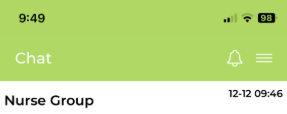
3. Select the nurse group chat from the chat list
4. To send an image, select the paper clip icon from the bottom left next to the text field.
- You will be given the option to send images from your device, or to take a photo to send.
5. Once the image is selected click the green arrow to send